Bulk Google Index Checker
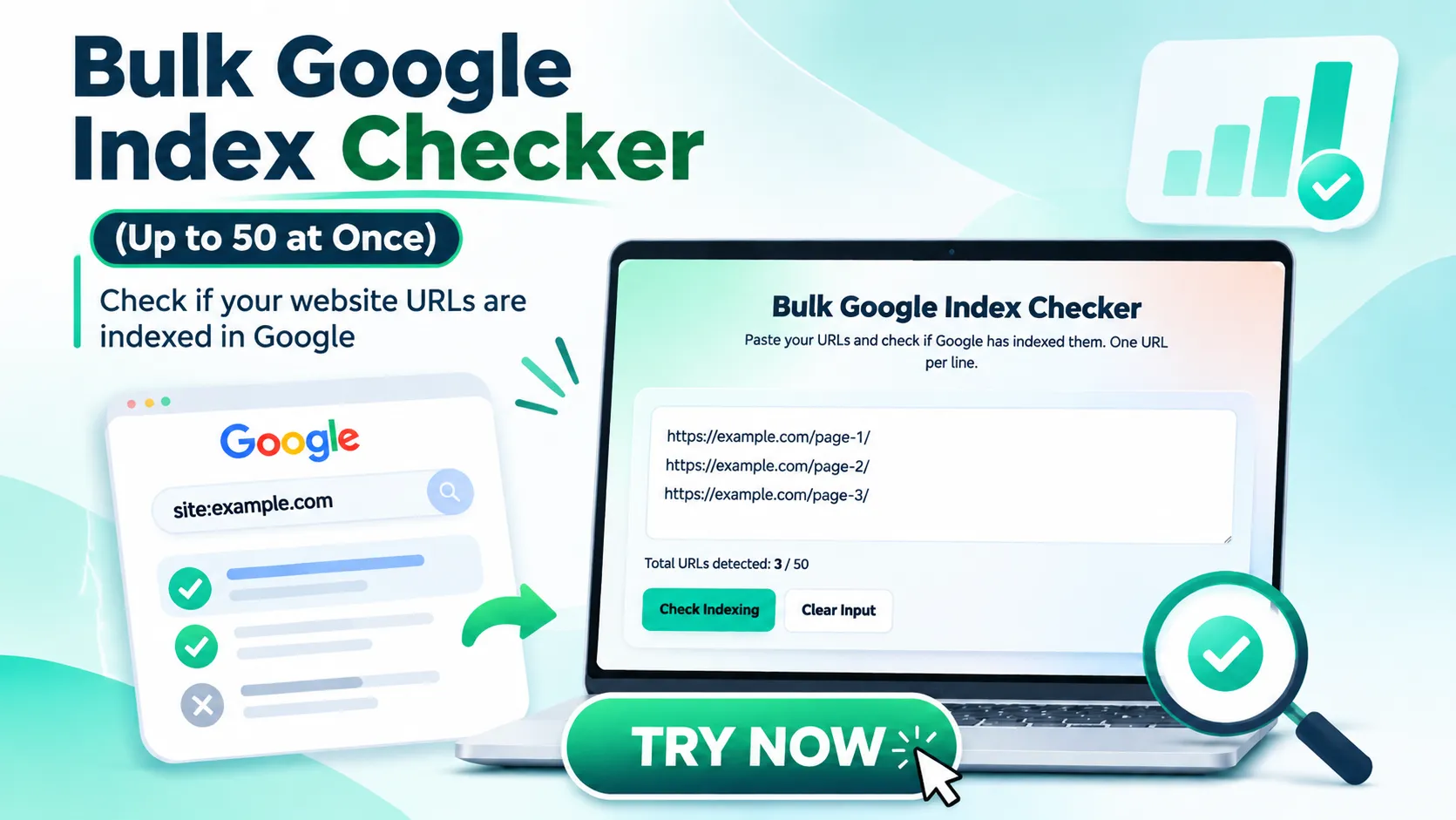
Paste your URLs and check if Google has indexed them. One URL per line.
Google Index Search Links
You hit publish on twenty new pages last week. Today you search for one of them on Google, and nothing comes up. Is it a ranking problem, or is the page not in Google at all? Those two issues need completely different fixes, and you can’t tell them apart until you know the page’s indexing status.
Checking one URL is easy. Checking thirty is where it gets tedious. That is exactly why we built the Bulk Google Index Checker, a free tool that lets you work through up to 50 URLs in a single sitting without retyping a single search.
This guide explains what the tool does, how it works behind the scenes, how to read the results, and what to do when a page isn’t indexed.
What “indexed” actually means
Google works in three broad steps. It finds a page (discovery), visits it (crawling), and then decides whether to store it in its searchable database (indexing). A page can only show up in search results if it has made it through that last step.
Being indexed doesn’t guarantee traffic. It only means the page is eligible to appear. But a page that isn’t indexed has zero chance of ranking, so it’s the first thing worth checking.
When a bulk index check is useful
- After publishing a batch of content. A new blog series, product pages or a refreshed category.
- After a redesign or migration. URLs change, redirects get set up, and some pages quietly fall out.
- When auditing a client’s website. You need a fast overview before you open any reports.
- When checking backlinks. A link only helps if the page it sits on is in Google, and you can’t use Search Console on sites you don’t own.
- Before and after guest posting. Confirm the post you paid for or wrote actually got picked up.
What the Bulk Google Index Checker does
Here is the exact functionality, with no embellishment:
- Accepts up to 50 URLs per run, one per line, with a live counter showing how many it has detected.
- Shows a warning if you go over 50.
- Requires each URL to start with http:// or https://. Anything else is treated as invalid.
- Removes duplicate URLs automatically, so you never check the same page twice.
- Strips out risky characters (< > ” ‘) from your input before using it.
- Puts invalid or skipped lines into a separate box, with a Copy Invalid URLs button so you can fix and retry them.
- Builds a Google search link for every valid URL, using the site: search operator.
- Opens those links one at a time with the Open Next button, marks each opened link with a tick, and shows progress such as “Opened 3 of 12”.
- When you enter two or more URLs, it shows a tip next to the button: hold Ctrl (Cmd on Mac) while clicking Open Next so each result opens in a background tab.
- Scrolls you smoothly down to the results after you click Check Indexing, so the Open Next button is right in front of you.
What it doesn’t do (so you aren’t surprised)
This matters, so we’ll say it plainly. The tool does not log into Google, contact any Google service in the background, or print an automatic “indexed” or “not indexed” label next to each URL. It prepares the search for every URL and opens them for you. You read the result on each Google page.
How it works, step by step
- Paste your URLs. One full URL per line, for example https://yoursite.com/blog/my-post/.
- Click Check Indexing. The tool validates your list, removes duplicates and builds the search links. The page scrolls down to them.
- Click Open Next. Each click opens the next URL’s Google search in a new tab. Hold Ctrl (or Cmd) while you click if you’d rather stay on the tool page.
- Read each result. Go through the tabs and note which URLs show up and which don’t.
- Copy invalid lines, fix them, and run them again if any were skipped.
Behind the scenes, each link is just a normal Google search that looks like this: site: followed by your URL. That’s the same search you could type by hand. The tool simply does the typing and the tab-opening for you.
How to read what Google shows you
- Your page appears in the results. It’s very likely indexed.
- Google says nothing matched your search. The page may not be indexed, or it may be too new. Don’t panic yet; see the next section.
One honest caveat: the site: search is a quick check, not an official report. It can miss pages that are in fact indexed, and it doesn’t tell you why a page is missing. For your own website, the URL Inspection tool in Google Search Console gives the authoritative answer, including the reason. Think of this tool as the fast first pass, and Search Console as the confirmation for anything that looks wrong.
For pages on websites you don’t own, such as backlinks or competitor pages, the site: method is usually the only quick option, which makes the bulk checker especially handy there.
A page isn’t indexed. Now what?
Work through these in order:
- Give it time. New pages can take days to be picked up.
- Check for a noindex tag. A “noindex” instruction tells Google to keep the page out.
- Check robots.txt. A blocking rule can stop Google from even visiting the page.
- Check the canonical tag. If it points to a different URL, Google may index that one instead.
- Look at the content. Very thin, duplicated or low-value pages are often skipped.
- Add internal links. A page that no other page links to is easy for Google to overlook. Link to it from relevant pages and your sitemap.
- Request indexing in Search Console for important pages you own, after fixing any issues.
In Search Console you may see messages such as “Crawled – currently not indexed” or “Discovered – currently not indexed”. The first means Google visited but chose not to include the page yet. The second means it knows the URL but hasn’t visited it. Improving content quality and internal linking usually helps with both.
Tips for getting more from the tool
- Always include the full URL with https://. Lines without it will land in the invalid box.
- Check in batches of 10 to 20 if you plan to go through many pages in a row. If Google asks you to confirm you’re not a robot after lots of quick searches, take a short break and continue.
- Keep a simple record. Paste your URLs into a spreadsheet and mark each as indexed or missing as you go.
- Re-check after a week instead of repeating the test every hour.
Your list stays with you
The tool runs inside your browser. It doesn’t send your URL list to a server and doesn’t store it. The only place your URLs go is into the Google searches that you choose to open.
Who it’s for
Bloggers publishing regularly, SEO freelancers and agency teams doing audits, link builders verifying placements, and store owners managing large product catalogs. If you’ve ever opened fifteen tabs and typed site: fifteen times, this saves you the busywork.
FAQs about Site Index Checker
Q: Is the Bulk Google Index Checker free?
A: Yes. DigiTechfab’s site index checker is free. There is nothing to install and no sign-up.
Q: How many URLs can I check at once?
A: Up to 50 per run. For longer lists, split them into batches.
Q: Does the tool tell me automatically if a page is indexed?
A: No. It creates a Google check link for every URL and opens them one by one. You read each result yourself.
Q: Is a site: search accurate?
A: It’s a good quick indicator, but not a guarantee. Google doesn’t promise that it lists every indexed page this way. Confirm important pages with Search Console.
Q: Can I check pages from other websites?
A: Yes. That’s one of the best uses, for example checking whether a backlink page is in Google.
Q: Why does my new page not show up?
A: It may simply be too new, or something may be blocking it, such as a noindex tag, a robots.txt rule or a canonical pointing elsewhere.
Q: Why did some of my URLs end up in the invalid box?
A: Most often they are missing http:// or https://, or have a typo. Fix them and run the check again.
Try it now!
Paste your URLs into the Google Index Checker, and in a few minutes you’ll know which pages are visible in Google and which need attention.